Showing posts with label Azure. Show all posts

01 January 2017

Power BI reports in Microsoft Dynamics NAV 2017 Role Center

Hi All,

Today, I will demonstrate how to configure Power BI Services and a Power BI account, as well as add Power BI reports to a user’s NAV 2017 Role Center

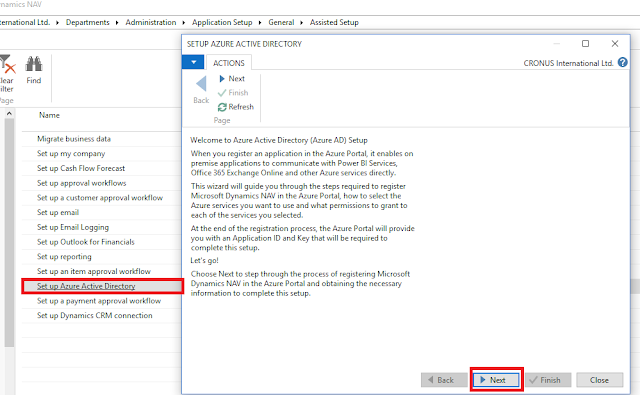
1)  Setup Azure Active directory to register an application so that it enables on premise application to communicate with Power BI services, Office 365 Exchange Online and other Azure services.

Go to--> Assisted Setup--> Setup Azure Active Directory--> Next


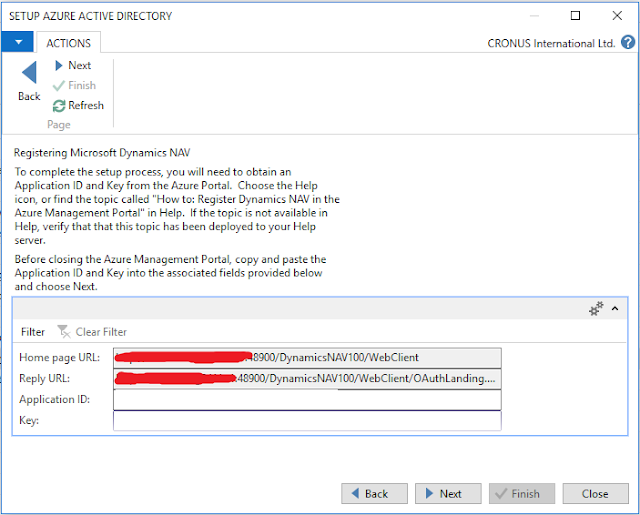
2) We need to register the NAV 2017 application with Azure Directory and obtain the Application ID and Key from Azure Portal so that NAV 2017 can communicate with Azure services.


3) To register NAV 2017 please sign into Azure Portal with your credentials.

Click on Azure Directory Icon --> App registrations --> Add

Name: Give the Name for App Registration
Application Type : Select Native
Redirect URI : Select from Reply URL from the above screen.

Finally click on Create to register the NAV App. It will generate Application ID.
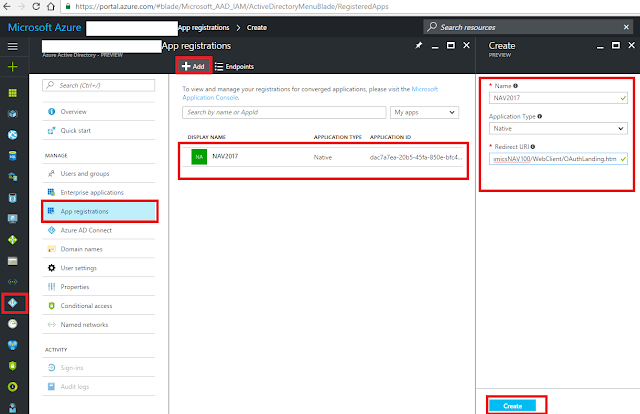


4) Now give Permission to various API's available, in our case Power BI Services.

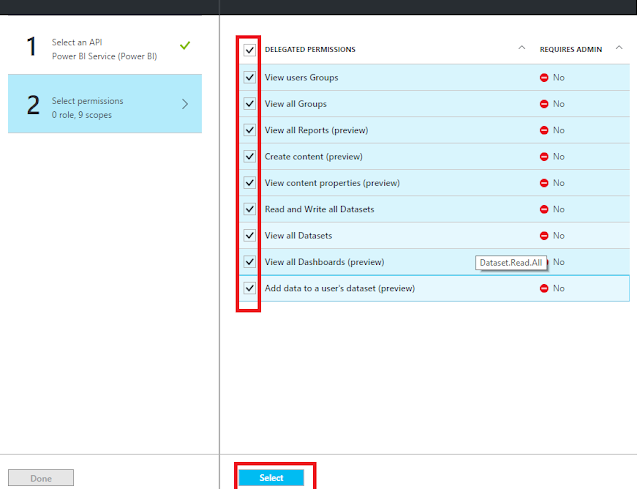
Click on Required permissions--> Add --> Select an API--> Power BI Services --> Select
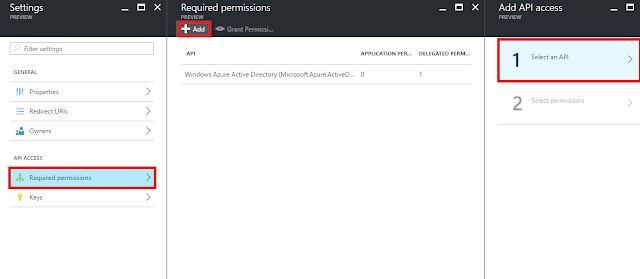


Give the required permissions and complete the process


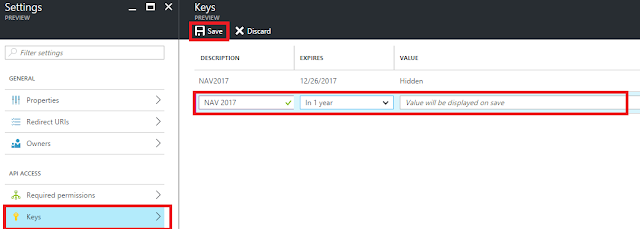
5) Now generate the Key

Give Description, Expires and then Save, it will generate a key.


6) Now come back to Step 2 and enter the Application ID and Key and then Finish the setup.

We registered in Azure Active Directory, and permissions to the Power BI Service API are set, now we are ready to start working with Power BI reports in Dynamics NAV

7) Now go to to Role Center and click on Get Started with Power BI.
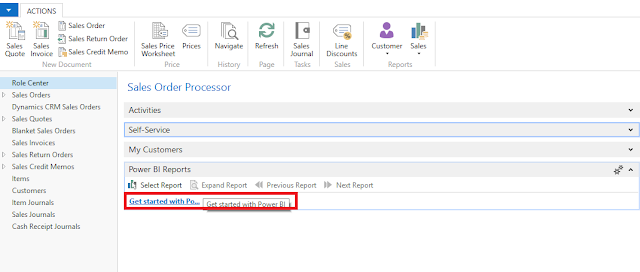

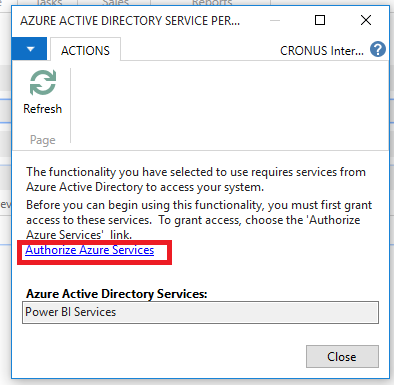
8) Click on Authorize Azure Services to give data access permissions to Azure resources.


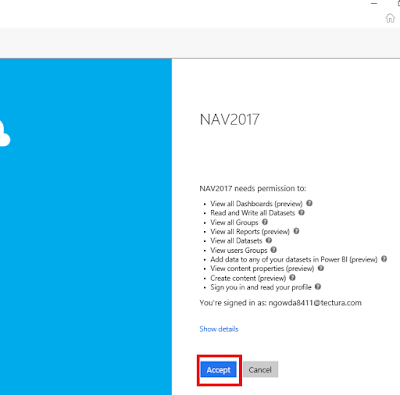
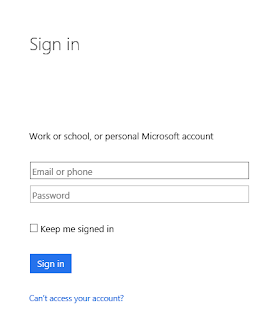
9) Sign in with your Azure directory credentials and click on Accept to complete the process.


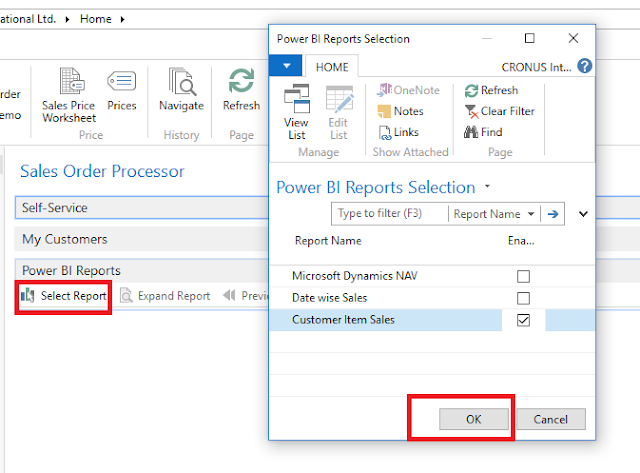
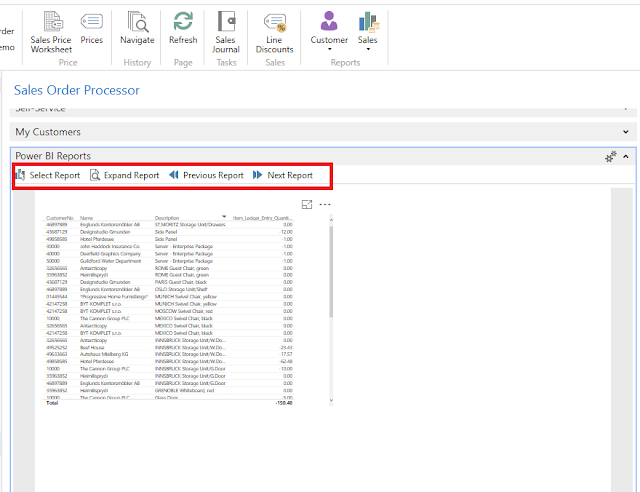
10) Now Power BI Reports are available on your Role Center dashboard.

Select the reports from the list of reports you have created in Power BI.


11) As shown below you can view the report data, move between other reports and expand the view layout.


Thanks & Regards,
Nandesh Gowda

25 December 2016

Developing Extensions in Visual Studio Code with New Development environment NAV

Hi All,

Visual Studio Code and the AL Extension lets you do the following tasks
  • Create new files for your solution
  • Get assistance with creating the appropriate configuration and setting files
  • Use code snippets that provide templates for coding application objects
  • Get compiler validation while coding
  • Press F5 to publish your changes and see your code running
Visual Studio Code manages projects by including all files from a directory. Whatever files exist in that directory are then part of your project.

In addition there are two other configuration files; app.json and launch.json. You can define these yourself, possibly by copying the files from sample code or you can have the system autogenerate them for you.

Building the solution (Ctrl+Shift+B) will create the app.json file and publishing (F5) will generate the launch.json file. Within these files, you’ll need to set up some parameters to connect to your server.

Ex: Here we will create an Extension to an Item table with a new field and add a validation to the new field created.

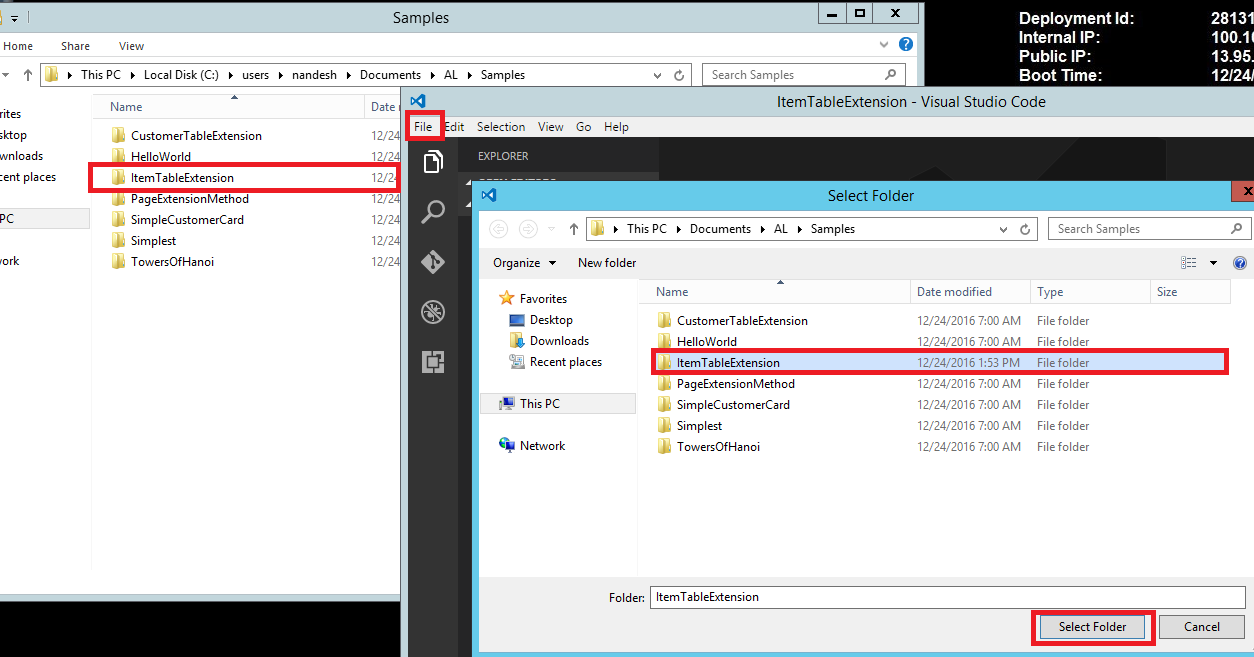
1) First Create a Project Folder and select that Folder from Visual Studio Code. Or you can start from Visual Studio Code and create folder and files from there itself.


2) You can Copy the launch.json and app.json file from other sample projects or else you can allow visual studio to create it automatically during building and publishing the project.

3) Add New file by clicking on New Icon and give it a Name and save it as .al extension. Saving it in .al extension will activate the AL Language Extension for Visual Studio Code. In the same file we will add our code.


4) Now in the Code Editor type in ttableext and the IntelliSense will bring in the code snippet for you.


5) Now change the code to add new field on Item table and similarly add the new field on item card page with validation on it by using page extension.

Below is for table extension


Below is for page extension


6) Now press Ctrl+Shift+B to build the solution and resolve if any errors. It will create .navx extension file.


And press F5 to publish the Package which is created on to NAV server.


7) Now let us verify whether the field has been added from NAV RTC and whether our validation is working. You can also see the published/installed extensions under Extensions Page in NAV RTC.


Note:

Below are the settings available in app.json and launch.json files.

Settings in the app.json file:
SettingMandatoryValue
idYesThe unique ID of the extension. When app.json file is automatically created, the ID is set to a new GUID value.
nameYesThe unique extension name.
publisherYesThe name of your publisher, for example: NAV Partner, LLC
applicationYes, if base application objects are extended or referencedThe minimal supported version and locale of the base application to extend, for example: { "version": "10.0.0.0", "locale": "W1" }
platformYes, if system tables are referenced in the extensionThe minimal supported version of the platform symbol package file, for example: "10.0.0.0". See the List of objects in the platform symbol file section below for the list of object symbols contained in the platform symbol package file.
packageCachePathYes, if base application is extended or system tables are referencedThe path to the folder where referenced symbol package files are located. The path could either be absolute or relative to the current extension working directory, for example: "../../resources"
Settings in the launch.json file:
SettingMandatoryValue
serverYes, if connecting to an on-premises serverThe HTTP URL of your server, for example: http://localhost
serverInstanceYes, if connecting to an on-premises serverThe instance name of your server, for example: NAV
portNoThe port on which the development endpoint is running on the server, default value: 7049
tenantNoThe tenant ID in case the server is configured for multitenancy.
windowsAuthenticationNoSpecifies whether Windows or Azure authentication should be used for publishing the extension. Currently only Windows authentication is supported.
startupObjectIdNoThe ID of the startup object to launch when you press F5. Currently only objects of type Page are supported.


Thanks & Regards,
Nandesh Gowda

24 December 2016

Understanding Objects and Sample Code Snippet Extensions for New Development Environment

Hi All,

In my last post I discussed on how to setup Azure 30 days free trial subscription and install a New VM for trying out New Development Environment. Below is the link for the same post.

https://nandeshgowda-navblog.blogspot.in/2016/12/developing-extensions-using-new.html


Understanding Objects in Dynamics NAV

All functionality in Dynamics NAV is coded in objects. Table objects define the table schema that holds data, page objects represent the pages seen in the user interface and codeunits contain code for logical calculations and for the application behavior. These objects are stored as code, known as AL code, and are saved in files with the .al file extension.

Note
A single .al file may contain multiple objects.

For Table Object please refer below MSDN Link
https://msdn.microsoft.com/en-us/dynamics-nav/newdev-table-object

For Page Object please refer below MSDN Link
https://msdn.microsoft.com/en-us/dynamics-nav/newdev-page-object

For Codeunit Object please refer below MSDN Link
https://msdn.microsoft.com/en-us/dynamics-nav/newdev-codeunit-object

There are two other special objects which are specifically used for building extensions. Table extension objects and page extension objects are used for defining additive or overriding changes to table or page objects.

For example, an extension for managing a business that sells organic food may define a table extension object for the Item table that contains an additional field Organic and Produced Locally. The Organic and Produced Locally fields aren't usually present in the Item table, but through the table extension these data fields will now be available to store data in and to access from code.

You can then use the page extension object to display the fields that you added to the table object.

Note :
Table and page extension objects can have a name with a maximum length of 30 characters.


1) Table Extension Object :

The table extension object allows you to add additional fields or to change some properties on a table provided by the Dynamics NAV service. In this way, you can add data to the same table and treat it as a single table.

For example, you may wish to create a table extension for a retail winter sports store. In your solution you want to have ShoeSize as an additional field on the customer table. Adding this as an extension allows you to write code for the customer record and also include values for the ShoeSize.

Along with defining other fields, the table extension is where you write trigger code for your additional fields.

Snippet support :
Typing the shortcut ttableext will create the basic layout for a table extension object when using the AL Extension in Visual Studio Code.

Properties:
Using a table extension allows you to overwrite some properties on fields in the base table. The following properties can be changed.

  • OptionCaptionML
  • ClosingDates
  • Description
  • Width

Table Extension example :
This table extension object extends the Customer table object by adding a field ShoeSize, with ID 70000900 and the data type Integer. It also contains a procedure to check if the ShoeSize field is filled in.
tableextension 70000020 RetailWinterSportsStore extends Customer
{
    fields
    {
        field(70000900;ShoeSize;Integer) 
        {
            trigger OnValidate();
            begin
                if (rec.ShoeSize < 0) then
                begin
                   message('Shoe size not valid: %1', rec.ShoeSize);
                end;                    
            end;
        }
    }

    procedure HasShoeSize() : Boolean;
    begin
        exit(ShoeSize <> 0);
    end;

    trigger OnBeforeInsert();
    begin
        if not HasShoeSize then
            ShoeSize := Random(42);
    end;
}

2) Page Extension Object

The page extension object extends a Dynamics NAV page object and adds or overrides the functionality.

The structure of a page is hierarchical and breaks down into three sections. The first block contains metadata for the overall page; the type of the page and the source table it is showing data from. The next section; the layout, describes the visual parts on the page. The final section details the actions that are published on the page.

In the layout section, you can use the following functions to place page fields and groups on the page. Similarly, in the actions section, you use these functions to place actions in the ribbon.

Function exampleApplies to...
addfirst(General)Groups only
addlast(General)Groups only
addafter(AddressDetails; "Post Code")Fields and groups
addbefore(AddressDetails; "Post Code")Fields and groups
movefirst(General)Groups only
movelast(General)Groups only
moveafter(AddressDetails; "Post Code")Fields and groups
movebefore(AddressDetails; "Post Code")Fields and groups

If you want to modify existing fields and groups on a page, you use the modify() function. See the code example below for syntax.

Snippet support :
Typing the shortcut tpageext will create the basic layout for a table object when using the AL Extension in Visual Studio Code.

Page Extension example :
The following page extension object extends the Customer Card page object by adding a field control ShoeSize to the General group on the page. The field control is added as the last control in the group using the addlast function. In the actions area, you can see what the syntax looks like for actions that execute triggers and actions that run objects.

pageextension 70000020 CustomerCardExtension extends "Customer Card"
{
    layout
    {
        addlast(General)
        {
            field("Shoe Size"; ShoeSize)
            {
                CaptionML = ENU='ShoeSize';

                trigger OnValidate();
                begin
                    if ShoeSize < 10 then
                        Error('Feet too small');
                end;
            }
        }

        modify("Address 2")
        {
            CaptionML = ENU='New Address 2';
        }
    }

    actions
    {
        addlast(Creation)
        {
            group(MyActionGroup)
            {
                Action(MyAction1)
                {
                    CaptionML = ENU='Hello!';

                    trigger OnAction();
                    begin
                        Message('My message');
                    end;
                }

                Action(MyAction2)
                {
                    RunObject = codeunit "Activities Mgt.";
                }
            }
        }
    }

   var
        Msg : TextConst ENU='Hello from my method';

    trigger OnOpenPage();
    begin
        Message(Msg);
    end;
}


Thanks & Regards,
Nandesh Gowda

Using the New Dynamics NAV In-Client Designer

Hi All,

Using the Dynamics NAV In-Client Designer

With the Dynamics NAV in-client designer, you can create extensions using drag-and-drop inside the client. With this preview of the in-client designer, you can:
  • Enter and exit design mode
  • Move fields around
  • Add existing fields
  • Preview your design (desktop, tablet, and phone preview)
  • Save the extension for the tenant
Adding a field

The in-client designer is switched on by choosing the design icon in the ribbon top right corner from any page that you want to make modifications to, and then choosing More.

In design mode you modify the current page; you can add existing table fields, move fields around, or remove fields from the page.


Note :
With this preview you can only add existing table fields. Adding pages, groups, parts, and actions is not yet supported.

Use the add field functionality to add a field to the page. You will get a pane to the right where you can see all of the table fields that are available for the specific page.

The table fields displayed are based on the underlying table or tables. The field can have a status of Placed, which means that the field already exists on the page.
A status of Ready means that the field doesn't already exist on the page, and that you can place it.

You can Remove field by clicking on any of the field on the page.


When you modify subpages on a given page, a square is displayed to mark the area that you can move a field within. This is also true for FactBoxes.


Change a FastTab caption by clicking the caption and start writing.


The display type icons let you preview the changes you made on desktop, tablet, and phone clients. This way you can make sure that your design will work on the intended display target(s).
You can flip to display tablet and phone designs in landscape as well.


All the UI changes are stored as Extensions.


Thanks & Regards,
Nandesh Gowda

Developing Extensions Using the New Development Environment Getting Started NAV

Hi All,

The Microsoft Dynamics NAV ‘Tenerife’ Developer Preview is still evolving with frequent update.

Extensions are a programming model where functionality is defined as an addition to existing objects and defines how they are different or modify the behavior of the solution.

Below link on MSDN section explains how you can develop extensions using the new development environment for Dynamics NAV.

https://msdn.microsoft.com/en-us/dynamics-nav/newdev-dev-overview.

For previous post on Extensions on my blog please refer below links.

https://nandeshgowda-navblog.blogspot.in/2016/11/extending-microsoft-dynamics-nav-using.html

https://nandeshgowda-navblog.blogspot.in/2016/11/developing-extension-package-nav.html


Here we will discuss on how to get started with the new Development Environment.

To get started writing extensions for Dynamics NAV you will need a Dynamics NAV tenant, and Visual Studio Code. Visual Studio Code is a cross platform editor that you will use for coding and debugging.

For the preview, you will download a VM from the Microsoft Azure Gallery which is set up for trying out the new development environment.
Steps :
1) First, you will need an Azure subscription. You can sign up for a free subscription.

2) Go to Microsoft Azure Marketplace and search for Microsoft Dynamics NAV Developer Preview. Then click on Create to create new Virtual Machine.


3) Fill in the various details and create a new virtual machine. It will take 10-15 mins to create the same.


4) Now connect to VM with the Login credentials given while creating VM.


5)  If you can't see Visual Studio Shortcut on Desktop, Open C:\Demo folder and run the script called Install New Developer Experience.ps1 and select Run with Powershell.


6) After Installing you can see the Visual Studio Shortcut on Desktop.


7) Now Open the New Visual Studio Code Editor


Thanks & Regards,
Nandesh Gowda

16 September 2016

Combining Data from Microsoft Dynamics NAV Queries and Pages with Data from Azure DataMarket (OData) : NAV 2016

Hi All,

This walkthrough describes how you can use OData to combine data from Microsoft Dynamics NAV 2016 with data from Microsoft Azure Marketplace

Prerequisite:


1) Microsoft Excel 2013 with Microsoft PowerPivot enabled, or Microsoft Excel 2010 with the PowerPivot add-in for Excel 2010 installed. 


2) A Microsoft account for accessing data from Azure Marketplace. For more information about Microsoft account, see the What is a Microsoft account?. To obtain a Microsoft account, go to the sign-up page


Create Sales Line table Query as shown below with needed fields to publish it as a web service.


We need to publish a Customer Page as well as a Web service.

I will not go in detail of Publishing the web service and using the OData Web Service in Excel Powerpivot. You can refer my below post for detailed explanation on the same.

https://nandeshgowda-navblog.blogspot.in/2016/09/viewing-page-data-in-excel-using.html


We will Concentrate on Importing Data from Azure Marketplace

Importing Data from Azure Marketplace
The Azure Marketplace is an online market where you can buy and sell finished Software as a Service (SaaS) applications and premium datasets. 

The Azure Marketplace offers many different kinds of data, including demographic, environment, financial, retail, and sports data.

In this walkthrough, you use demographic data about development standards in different countries and regions


  • In PowerPivot, on the Home tab, in the Get External Data, choose From Data Service, and then choose From (Windows) Azure Marketplace.


This opens a web page titled Microsoft Azure Marketplace Catalog which shows the available Azure Marketplace datasets.

  • Choose My Data and use your Microsoft account to create a free Azure Marketplace account.


After you are signed up, choose Data to return to the list of available datasets.


  • In the left panel, choose Free, choose Demographics, and then scroll down to choose World Development Indicators.


  • Read about the dataset, and then choose SIGN UP to subscribe to this data feed. On the Subscription page, choose SIGN UP again.


  • Now you can see  GetCountries Worksheet 


  •  You can create a relationship between all the 3 sheets and use it to develop Pivot table and analyze data.


Thanks & Regards,
Nandesh Gowda