Showing posts with label Power BI. Show all posts

01 January 2017

Power BI reports in Microsoft Dynamics NAV 2017 Role Center

Hi All,

Today, I will demonstrate how to configure Power BI Services and a Power BI account, as well as add Power BI reports to a user’s NAV 2017 Role Center

1)  Setup Azure Active directory to register an application so that it enables on premise application to communicate with Power BI services, Office 365 Exchange Online and other Azure services.

Go to--> Assisted Setup--> Setup Azure Active Directory--> Next
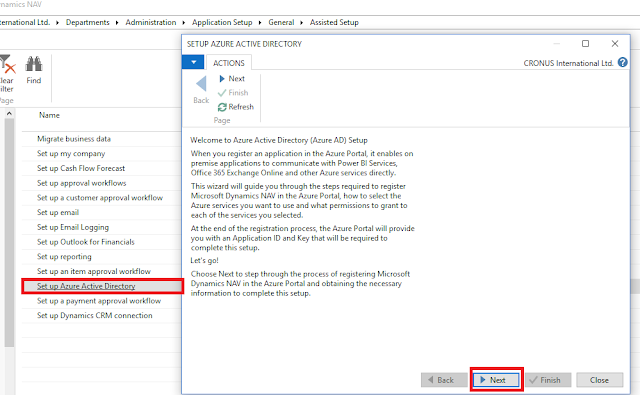


2) We need to register the NAV 2017 application with Azure Directory and obtain the Application ID and Key from Azure Portal so that NAV 2017 can communicate with Azure services.
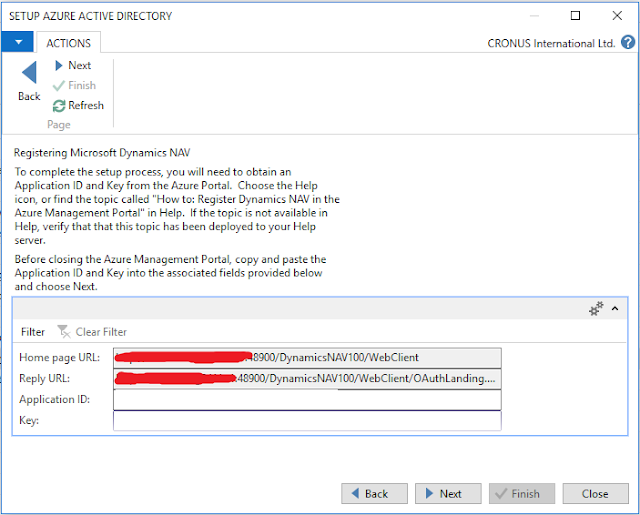


3) To register NAV 2017 please sign into Azure Portal with your credentials.

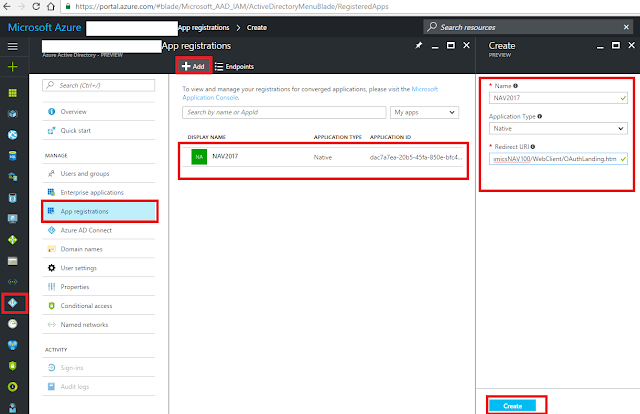
Click on Azure Directory Icon --> App registrations --> Add

Name: Give the Name for App Registration
Application Type : Select Native
Redirect URI : Select from Reply URL from the above screen.

Finally click on Create to register the NAV App. It will generate Application ID.


4) Now give Permission to various API's available, in our case Power BI Services.

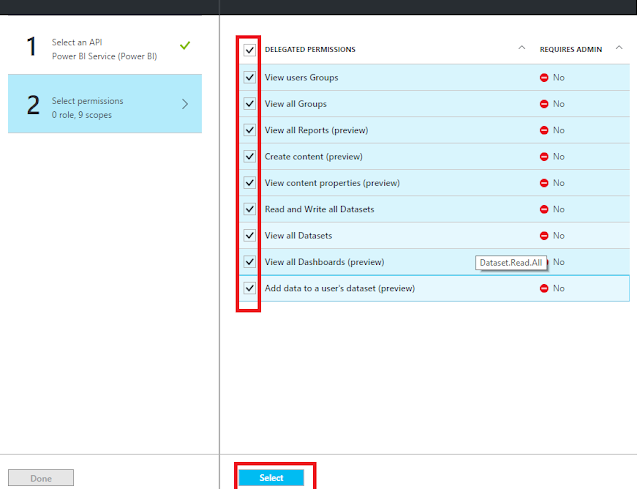
Click on Required permissions--> Add --> Select an API--> Power BI Services --> Select
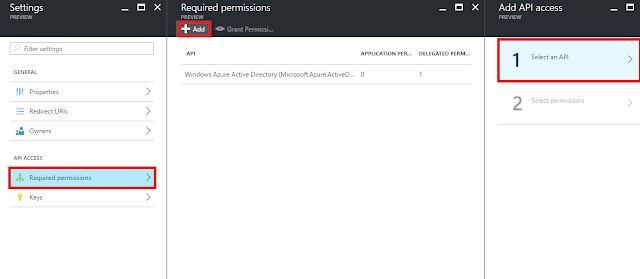


Give the required permissions and complete the process


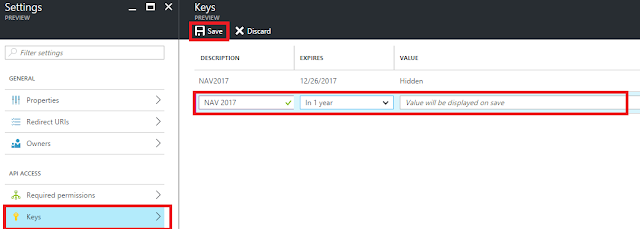
5) Now generate the Key

Give Description, Expires and then Save, it will generate a key.


6) Now come back to Step 2 and enter the Application ID and Key and then Finish the setup.

We registered in Azure Active Directory, and permissions to the Power BI Service API are set, now we are ready to start working with Power BI reports in Dynamics NAV

7) Now go to to Role Center and click on Get Started with Power BI.
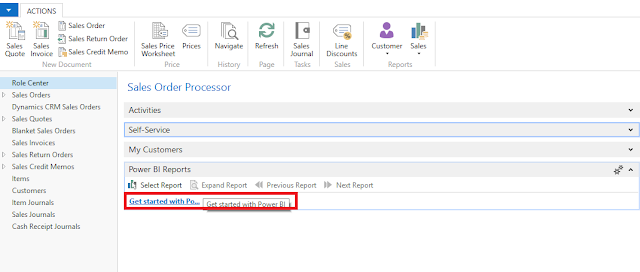

8) Click on Authorize Azure Services to give data access permissions to Azure resources.
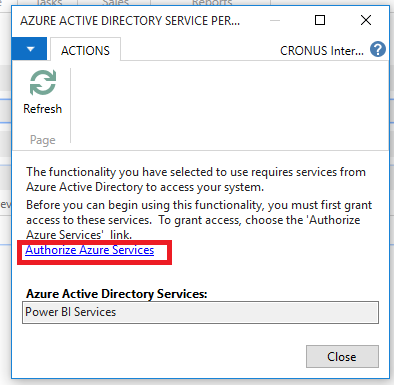


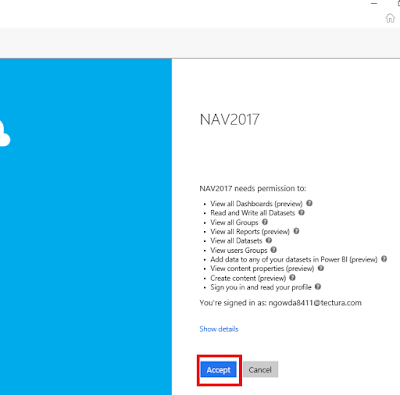
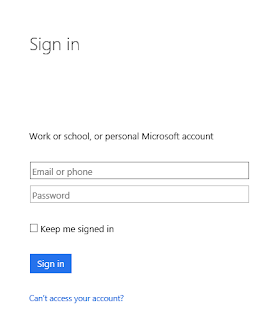
9) Sign in with your Azure directory credentials and click on Accept to complete the process.


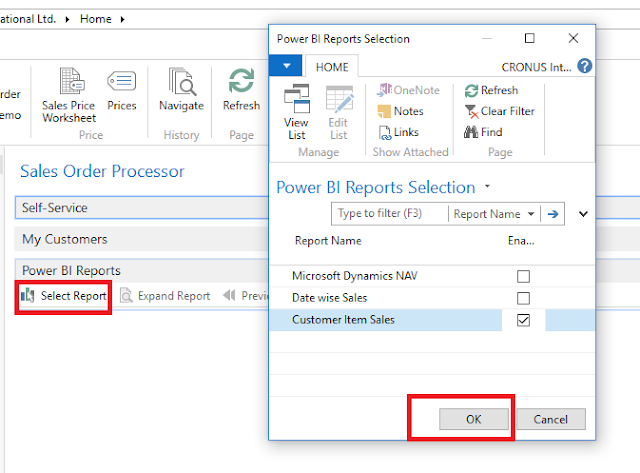
10) Now Power BI Reports are available on your Role Center dashboard.

Select the reports from the list of reports you have created in Power BI.


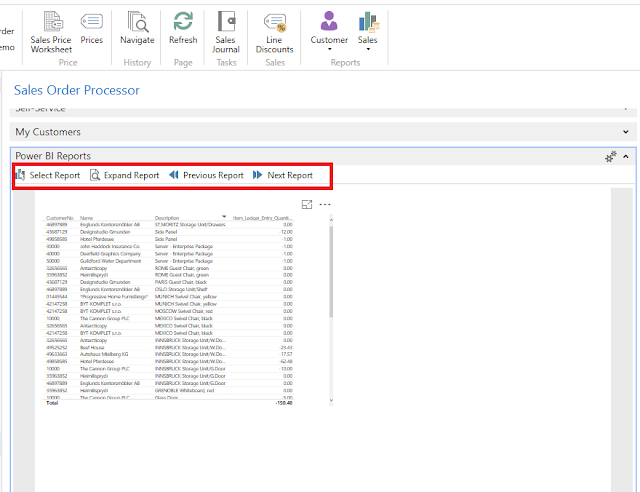
11) As shown below you can view the report data, move between other reports and expand the view layout.


Thanks & Regards,
Nandesh Gowda

26 September 2016

What's New in Microsoft Dynamics NAV 2017​

Hi All,


What's New in Microsoft Dynamics NAV 2017​?

Below are the new features/enhancements for NAV 2017 as per the the link shared on Microsoft Partner Source. What's new in Microsoft Dynamics NAV 2017


1) In Office 365 experience : 

Stay Connected with all the parts of your business. Microsoft Dynamics NAV is directly Linked to Office 365, which means you can easily review, analyze, and share data. You can navigate effortlessly between your Microsoft Dynamics NAV data and your office tools for ex : (Microsoft Outlook, Microsoft Bookings, or Microsoft Excel.


2) Embedded Power BI : 

We can now use embedded Power BI to easily create insightful charts & reports, and then make them available with in your MS Dynamics NAV 2017 role center.


3) Setup & Configuration : 

Getup and running faster. Save time & avoid unnecessary manual tasks with the assisted setup wizard that helps you import data, setup integration with Office 365, and enjoy a simplified setup experience, with predefined setup data and limited customer interaction. 

Use the assisted setup feature to guide you through setup scenarios. For ex: follow wizards to setup workflows for approvals, set fiscal year, etc.

It is now easy to setup and adjust cash flow forecasting ,gathering data from all relevant sources to provide you with a complete overview.


4) User Experience :

You can accomplish even more in your browser based interface. for ex : Switch views to see and identify your list of records, including seeing picture thumbnails in different sizes , and use wizards to learn new concepts or simplify data entry. 

In the web client, you can also use popular shortcuts ; for ex, press escape to instantly exit a page or F5 to refresh the latest data in your browser.


5) Finance :

Work with ready-to-use financial statements  and gain accessible insights into the financial performance of your business. The new  default Account Schedules means that no setup is required, making it quick to produce financial reports that you need, and point in time reporting means you can view the financial state of your business for any given time. Reporting is also made easier with the new Account categories that provide structure to your chart of accounts.


6) Jobs :

Working with Jobs is now more straightforward, helping you manage projects more easily and get more visibility into the details, setup jobs and enter time sheets using the new Jobs setup wizard and quickly access common tasks , new charts, and a new My Jobs list using the updated Project Manager role center.


7)  CRM :

Use a new wizard to guide you through the setup process, which enables seamless coupling of MS Dynamics CRM records with MS Dynamics NAV 2017 records. The MS Dynamics NAV Integration Solution on the CRM side is automatically deployed through the wizard.


8) Items :

Organize and classify your products the way you want, performing advanced searches on your catalog in just a few clicks and displaying only the information you need. you can create custom item attributes and assign an item attribute value according to your business needs, helping you manage items or create sales documents.

When you add your attributes and values to an item, you can see them all in fact box,on both the card and the list. And you can filter your items based on attribute values making it more efficient to add items to sales & purchase documents and limiting the list of items to choose from or take action on.


9) E-everyting :

Make it easier to your customers to pay your invoices online by including hyperlinks to payment services such as PayPal. Even provide PayPal Standards payment links in Invoices, supporting multiple ways of accepting payments, including credit cards & PayPal accounts


10) Cortana Intelligence :

Built-in Cortana Intelligence takes advantage of historical data and improves your insights into your predicted sales, helping you manage your stock and respond to your customers. Based on the forecast, the Sales and Inventory extension helps create replenishment requests for vendors, saving you time.

You can be confident that you are working with the best predictions , because system uses different machine learning algorithms and compares the results, returning the predictions with the highest quality.


11) PowerApps & Microsoft Flow :

Microsoft Dynamics NAV 2017 includes an entirely new integration with Microsoft Power BI.

Connect to your MS Dynamics NAV Instance and immediately have access to business performance insights into your business. This app is designed specially for Small and Mid-sized Business (SMB) owners, managers, and executives to provide details about customers,sales & finance.


12) Extensions :

Modify your MS Dynamics NAV system without directly altering the source resources, making it easier to deploy, manage, and upgrade customization's or extensions. Navigate through an install with only a few clicks and easily view extension information, such as name , description, version, publisher, and links.

You can also install and uninstall extensions easily using the Extension Management page and quickly choose the extensions  you want using the easily -recognizable logos.


Thanks & Regards,
Nandesh Gowda

17 September 2016

Power BI with NAV - Simple Report

Hi All,

Power BI with NAV - Basics : This topic will help you to create a simple report.

You can refer to my below post on how to connect to NAV OData Service from Power BI and see the default dashboard created by Power BI.
https://nandeshgowda-navblog.blogspot.in/2016/09/power-bi-and-dynamics-nav-2016-getting.html


You can refer  below link for basic Concepts of Power BI Service
https://powerbi.microsoft.com/en-us/documentation/powerbi-service-basic-concepts/

You can build report with other data sources as well  for ex : Files ( CSV, Excel), Azure Database, etc.

Now we will use existing Microsoft Dynamics NAV Dataset to create a report.

1) Click on your Dataset on which you will create your reports, it will open a blank page with the Dataset fields on right hand side.

2) You can create a copy of existing report by using Save as option.

3) You can see Visualization Tool on the right hand side.


4)  Add a Line Chart Visualization Tool from right hand side Tool window. Select the fields  for the Visualization. I have selected  Posting Date and Sales Amount Actual fields. you can drag and drop the fields.

You can set Report level filters to the Report.


5) You can Save  the report by giving Report Name.


6) Saved Report will be Visible under Report section


7) Finally you can pin the Page to Dashboard.


Thanks & Regards,
Nandesh Gowda

Power BI and Dynamics NAV 2016 Getting Started

Hi All,

Power BI and Dynamics NAV 2016  : Getting Started

Microsoft Power BI helps you stay up to date with the information that matters to you. 

With Power BI, dashboards help you keep a finger on the pulse of your business. 

Your dashboards display tiles that you can click to open reports for exploring further.  Connect to multiple datasets to bring all of the relevant data together in one place 


To use Power BI with NAV you need to enable OData Web service in NAV server Instance.


1) Sign in To Power BI with your credentials. Else follow the steps given to create a free account.


2) Choose content packs from online services that you use. Click on Get


3) Select Microsoft Dynamics NAV for Power BI and click on Get.


4)  You can Add the OData web service URL with following option.

  • You can use secure https to connect to OData Services         


Please select Basic Authentication and give the User Name and Password


                       OR
  • You can use Windows Authentication, but here you may run into authentication issue as the connection accepts secure connection with instance registered.
For this you may need to download and install  On Premises Data Gateway under download section of your Power BI Login. After Installing, login to Data Gateway with the same credentials used for power BI.


5 ) Power BI will retrieve your Microsoft Dynamics NAV data and create a ready-to-use dashboard and report for you. 


Thanks & Regards,
Nandesh Gowda