07 November 2016

UI Elements Removal : NAV Server Configuration Setting

Hi All,

This Setting was available in NAV 2013 R2 as a boolean, later it got changed to a option field.

What is the relevance of this configuration setting :

Depending on the setting in the UI Elements Removal field in the Microsoft Dynamics NAV Server Administration tool, only user interface (UI) elements on objects in the license or on objects that the user has permissions to will appear in the user interface.

All types of UI elements will be removed if they relate to objects that are not included in the license or the user does not have the required permission to the objects:

1) Fields

2) Actions

3) Page parts

UI elements that are directly related to an object through the TableRelation or the CalcFormula property can be removed automatically according to the license file and/or user permissions.

For UI elements that are not directly related to an object, you can use the AccessByPermission property to remove the element according to the user’s permission to a related object. For more information, see How to: Remove UI Elements Using the AccessByPermission Property.

Below are the options available to select:

OptionDescription
NoneAll UI elements are displayed, even if the license file does not include the related object and the user does not have permissions to the related object.
LicenseFileA UI element is removed if the related object is not included in the license file.
LicenseFileAndUserPermissionsA UI element is removed if the related object is not included in the license file and the user does not have permissions to the object as defined in the AccessByPermission property for the related UI element.

By default, this option is selected.


Thanks & Regards,
Nandesh Gowda

03 November 2016

Upgrading to Microsoft Dynamics NAV 2017

Hi All,

Upgrading to Microsoft Dynamics NAV 2017

Below Link on MSDN provides an overview of how to upgrade to Microsoft Dynamics NAV 2017. The upgrade process depends on different factors, such as the version of Dynamics NAV that you are upgrading from, and the degree to which your solution differs from the standard version of Dynamics NAV. The mains tasks range from converting the database to upgrading application code and data.


https://msdn.microsoft.com/en-us/dynamics-nav/upgrading-to-microsoft-dynamics-nav-2017

Thanks & Regards,
Nandesh Gowda

Reporting data setup tool NAV 2017 using Assisted Setup

Hi All,

Reporting data setup tool NAV 2017 using Assisted Setup

Assisted Setup : Its a wizard kind of feature introduced in NAV 2017 to help users complete the setup with ease.

Below in the screenshot you can see pre defined Assisted setup's readily available in NAV 2017.


We will discuss on report data set setup in this post.

Microsoft Dynamics NAV 2017 contains an easy to use tool that enables any user the ability to create rich and impactful datasets that they may use in Excel, PowerBI, or any other reporting tool that has the ability to connect to an OData source.

The age old problem with these types of tools is that you need to have in-depth knowledge of the data structure for your financial application.  This tool is different.  Simply select from data sources that are familiar to the user, such as a customer list or sales invoice list and begin defining your data immediately.

Available Data sources include:

  • List Pages
  • Queries


1) Search for Assisted Setup Page

The assisted setup is another new feature in NAV 2017 that enables users to perform setup functionality in an easy to use wizard format.

2) From the Assisted Setup page, Please select option for Set up reporting.


3) This will open the wizard to create a new OData end point that can be used in Excel, Power BI, PowerApps, or Microsoft Flow. Click on Next.


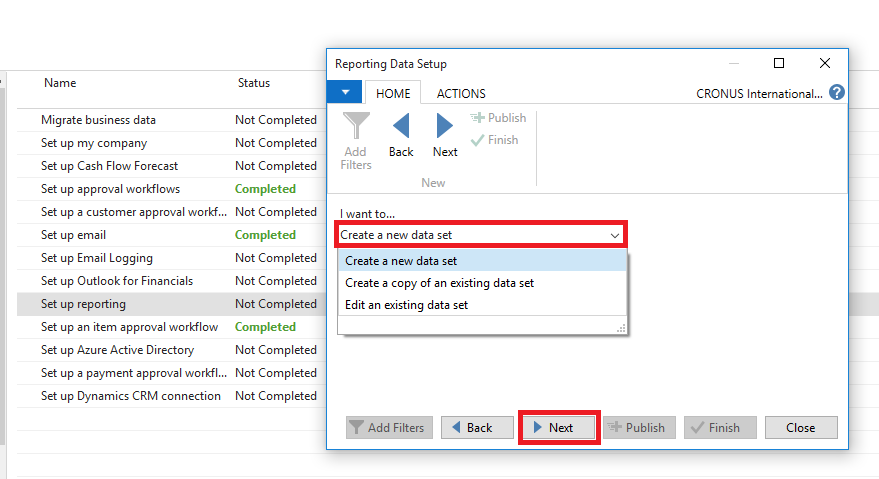
4) We will get 3 options i.e. Create a new data set, Create a copy of an existing data set and Edit an existing data set.

We will create a new reporting data set.Click on Next.


5) Please specify the Name for data set, we can choose from Page and Query Data Source Type.
I have selected Page Data Source Type and Item List page.

6) Please select the fields needed in the data set, and we can also give filters for the data set.


7) Finally Publish the data set. System will create OData Endpoint that can be used in Excel, Power BI, PowerApps, or Microsoft Flow.


8) We can verify the data set from excel. please open excel and connect to OData EndPoint


9) Connect to OData Endpoint with your NAV credentials and select the Item List data set.


10) Click on Next and then Finish. You can see the Item list data in excel.


Thanks & Regards,
Nandesh Gowda

Custom Email Cover Layouts Microsoft Dynamics NAV 2017

Hi All,

In Microsoft Dynamics NAV 2017 you can now create beautiful, professional looking email cover letter templates, including images, and invoice information such as totals, due date and payment terms, and use these when sending emails to customers.

The cover letters are created using the RDLC or Word report layout customization features, allowing visual consistency with any attached, detailed PDF documents.

Below is small demo :

1) Go to Customers and click on Document Layouts 

2) Select Usage whether for Quote, Order, Invoice, etc and then select Report ID for the same as shown below in screenshot.

3) Below I have selected for  Invoice. You can also enter an email address for the document if you want it to be sent to a different address than the one specified on the customer card.

4)  Use for Email Body if ticked  and you don't specify Email Body Layout Description then system will pick the default Layout for the Report as a template for email message.


5) If Email Body Layout Description is selected then the Email Template will be as per the selected Layout.


6) We can test the same from Posted Sales Invoices. Click on Send Action Item and Then  Press OK.


7) Now you can see the Email Body reflecting the one selected in Document Layouts on Customer Card,

8) You can choose from Message Content whether to use the default Email template specified on customer card or you can write your own Custom Message as well.


9) You can create your own Word Layouts and Import it in Custom Report Layouts.


Thanks & Regards,
Nandesh Gowda


Build Restriction NAV Server Configuration Setting

Hi All,

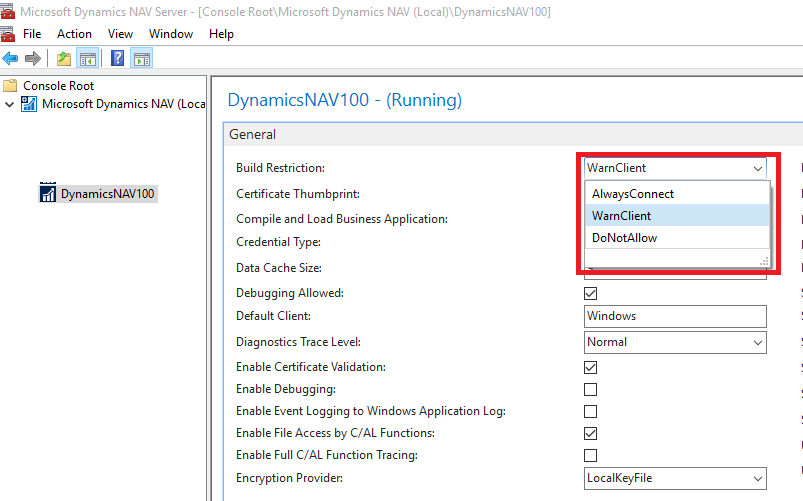
Build Restriction Configuration Setting is available in NAV 2017 as well where in we can restrict NAV Clients connecting to NAV Server having different build.

Values :

AlwaysConnect :

WarnClient :
Before connecting the client to the server instance, a message appears that informs the user that the build versions for the client and server instance are different. The user can choose to continue or cancel the connection.

DoNotAllow :
A message appears that informs the user that the client and server instance build versions are different, and the client does not connect to the server instance.

Default: WarnClient


Note: With the Microsoft Dynamics NAV Web client and Microsoft Dynamics NAV Tablet client, this setting compares the build version of the Microsoft Dynamics NAV Web Server components on IIS with the Microsoft Dynamics NAV Server instance. It controls the connection between Microsoft Dynamics NAV Web Server components and the server instance.

Thanks & Regards,
Nandesh Gowda

Smart Notification for Customers NAV 2017

Hi All,

Smart Notification for Customers NAV 2017

You may be aware of the Credit Limit warning that we get during creation of Sales Order if the Credit Limit exceeds for the customer.

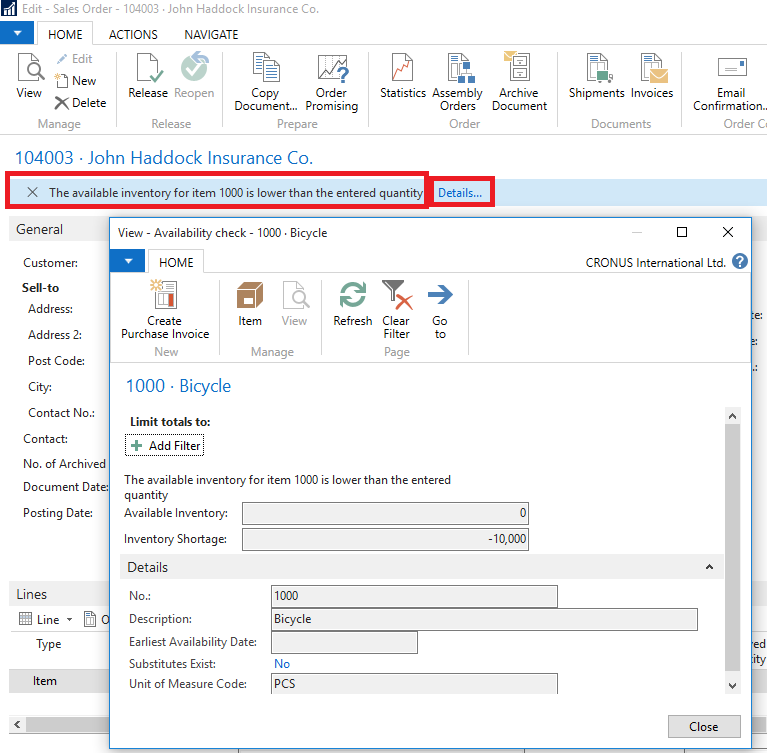
Similarly there are other warnings/notifications like the Item availability, Posting outside fiscal year, etc.

All these Warnings/Notifications can now be controlled from My Notifications Page.

User can see the Notifications at top of the page in the notification bar as shown below in the screenshot and user can continue working as it doesn't require user action. These Notifications are non-modal and are part of UI Notifications.


My Notifications Page

We can disable the warning by unticking the Enabled Column.


Also, we can give filters to Notifications as shown below.


Thanks & Regards,
Nandesh Gowda